DevOps Containers: A Practical Guide for DevOps Teams in 2026

Deployments that break in production. Builds that pass locally but fail in CI. Environments that behave differently depending on who set them up last.
If any of that sounds familiar, DevOps containers are the fix, and this guide shows exactly how to use them.
What Are DevOps Containers?
DevOps containers are lightweight, portable environments that package your application with everything it needs to run. That includes the runtime, system libraries, binaries, and configuration.
Instead of relying on “it works on my machine,” containers remove environmental drift. A developer builds the container once. Your CI pipeline tests that exact image. Production deploys the same artifact.
That consistency supports core DevOps goals:
- Faster deployments because environments no longer need manual setup
- Automated CI/CD pipelines using immutable container images
- Reduced configuration errors across stages
- Predictable rollbacks using versioned images
Different Types of DevOps Containers
Containers serve different roles across your DevOps lifecycle. Some build code. Some run it. Others test, support, or extend it.
Application Containers
Application containers package and run your actual software. From the web servers to APIs to background workers to the microservices your users interact with.
This container holds your application code, its runtime, and all dependencies it needs, so it behaves identically across environments.
Common examples include containers for Node.js APIs, Python microservices, Java backends, and more, all managed by tools such as Docker and orchestration platforms such as Kubernetes.
Build Containers
Build containers run the compilation, packaging, and artifact generation steps inside your CI pipeline.
Instead of configuring build tools directly on a CI server, the pipeline spins up a container with the exact compiler, SDK, or build tool version the project needs. When the build finishes, the container is discarded.
This means:
- Every build runs in a clean, reproducible environment without leftover state from previous runs
- Different projects can use different language versions (Node 18 vs Node 20, Python 3.10 vs 3.12) on the same CI infrastructure without conflicts
- Build tool updates apply to the container image, not the server, so rollbacks are instant
Test Containers
Test containers spin up the services your application depends on, i.e., databases, caches, and message brokers, during automated testing, then tear them down when tests finish.
Rather than mocking external services or maintaining shared test infrastructure, each test run gets a real, isolated instance. A test that needs PostgreSQL gets a live PostgreSQL container. A test that needs Redis gets a live Redis container.
That means integration tests catch real compatibility issues instead of testing against mocks that behave differently from production.
Test containers also prevent the "passing tests, failing prod" problem that affects teams using shared staging databases where data state varies between runs.
Infrastructure Containers
Infrastructure containers run the platform-level services that support your application containers. Think of reverse proxies, service meshes, log collectors, secrets managers, and certificate handlers.
These containers do not serve user traffic directly; they handle the operational concerns that keep everything else running:
- Reverse proxies (NGINX, Traefik) route incoming requests to the right application containers
- Log shippers (Fluentd, Filebeat) collect and forward logs from every container to a central store
- Secret managers inject credentials at runtime, so application containers never store sensitive values directly
- Certificate handlers (cert-manager) automate TLS certificate provisioning and renewal across services
Note: Infrastructure containers are managed separately from application containers and often run as DaemonSets in Kubernetes.
See Portainer In Action
Sidecar Containers
Sidecar containers extend or enhance application containers without modifying the app itself. They also run alongside the main container in the same pod or service group.
Common examples include logging agents, metrics collectors, security scanners, configuration reloaders, and more.
Instead of embedding logging logic into your application code, a sidecar collects and ships logs independently. That keeps your application focused on business logic.
Sidecars are common in Kubernetes-based container DevOps architectures and are used in containers-as-a-service environments.
Where Do Containers Fit in the DevOps Lifecycle?
Containers touch every stage of your DevOps workflow. From the moment your developer writes code on a laptop, through automated testing and CI builds, all the way to production deployment and scaling.
Here is where they plug in and what they actually do at each step:
| DevOps Stage | What Containers Do | Key Tooling |
|---|---|---|
| Development | Standardize local environments. Every developer runs the same image, eliminating "works on my machine" failures. | Docker, Docker Compose |
| Testing | Spin up real service dependencies (PostgreSQL, Redis) per test run, then discard them; no shared databases, no stale state. | Testcontainers, Docker Compose |
| CI/CD | Build, test, and scan images inside the pipeline; push a commit-tagged image that is identical to what runs in production. | GitHub Actions, GitLab CI, Jenkins |
| Deployment | Replace containers with immutable images. Blue/green, rolling, and canary patterns all depend on this model. | Kubernetes, Docker Swarm, Portainer |
| Production | Orchestrate failures, autoscale to demand, and enforce governance across clusters. | Kubernetes, Helm, Portainer |
How to Get Started With DevOps Containers
Follow these five steps to get containers into your DevOps workflow:
Write Your First Dockerfile
The Dockerfile is where every container starts. It defines the base image, copies your application code, installs dependencies, and sets the command that runs when the container starts.
Start with an official base image from Docker Hub: node:20-alpine for Node.js, python:3.12-slim for Python. Ensure it stays minimal, as every package you add increases image size and attack surface.
Then build the image locally with docker build -t myapp:v1 . and run it with docker run -p 3000:3000 myapp:v1 to confirm it works before moving on.
Define Your Full Stack With Docker Compose
Most applications need more than one container. Some need a web server, a database, and/or a cache. Docker Compose defines the entire stack in a single docker-compose.yml file.
Map each service, set environment variables, define which ports to expose, and specify volume mounts for any persistent data.
Running docker compose up starts every service in the correct order. This becomes the standard local development environment for your team.
Integrate Container Builds Into Your CI Pipeline
Once your container builds locally, move the build process into CI.
Configure your pipeline (GitHub Actions, GitLab CI, or Jenkins) to build the container image on every code push, run your test suite inside that image, scan it for vulnerabilities using a tool like Trivy, and push the tested image to a container registry tagged with the commit SHA.
These steps make your pipeline produce a deployable artifact. Every image in your registry is traceable to a specific commit.
See Portainer In Action
Deploy Your Container to a Live Environment
Pull the tested image from your registry and deploy it.
For a single server, docker run or Docker Compose handles this directly. For multi-server setups, Docker Swarm adds basic orchestration with a single docker stack deploy command.
Tag your production deployments with explicit image versions, never latest. The latest tag does not tell you what is actually running, but a versioned tag does. This makes rollbacks reliable: redeploying the previous tag restores the exact prior state in seconds.
Centralize Operational Control and Governance
After deployment, you need visibility and control across environments.
As clusters grow, direct CLI management becomes difficult to scale across teams. A centralized container management platform like Portainer lets you view workloads, manage role-based access, inspect configurations, and update services safely through a unified interface.
Portainer provides operational oversight and governance for your container environments. Although it simplifies day-to-day management, pairing it with a robust container monitoring platform ensures you have deep technical insights into application performance alongside administrative control.
Book a demo to see how Portainer provides instant container-level visibility without building a monitoring stack from scratch.
Best Practices for Managing Containers in DevOps
These five practices address the primary operational realities you face once containers move beyond the development environment:
Scan Every Image Before It Reaches Your Registry
Container images inherit vulnerabilities from their base layers. A 2024 analysis of public container registries found an average of 604 known vulnerabilities per image. Painfully, most teams never scan before deploying.
Always scan images in CI before pushing them to your registry.
You can use this command: trivy image myapp:latest --exit-code 1 --severity HIGH,CRITICAL. It fails the build if there are any high- or critical-CVEs.
Never Deploy With the latest Tag in Production
The latest tag is a floating pointer. It does not tell you what is actually running. Two servers pulling myapp:latest at different times may run different images, and when something breaks, there is no reliable way to know which version caused it.
Tag every production image with an immutable identifier. The commit SHA is the most reliable choice:
docker build -t myapp:$(git rev-parse --short HEAD) .
This Docker CLI command traces every running container directly back to a specific Git commit. Rollbacks become deterministic: redeploying the previous tag restores the exact prior state in seconds. Auditing becomes straightforward: you can see exactly what changed between two deployed versions.
Set Resource Limits on Every Container
Without resource limits, a single misbehaving container can consume all CPU or memory on a node and bring down every other workload running alongside it.
Kubernetes does not assume default limits. Every container that runs without explicit limits is a potential noisy-neighbor problem.
Set both requests and limits on every container:
resources:
  requests:
    cpu: "250m"
    memory: "256Mi"
  limits:
    cpu: "500m"
    memory: "512Mi"
Requests tell Kubernetes how much resource to reserve when scheduling a pod. Limits cap how much a container can actually consume at runtime.
Use Role-Based Access Control to Limit Who Can Do What
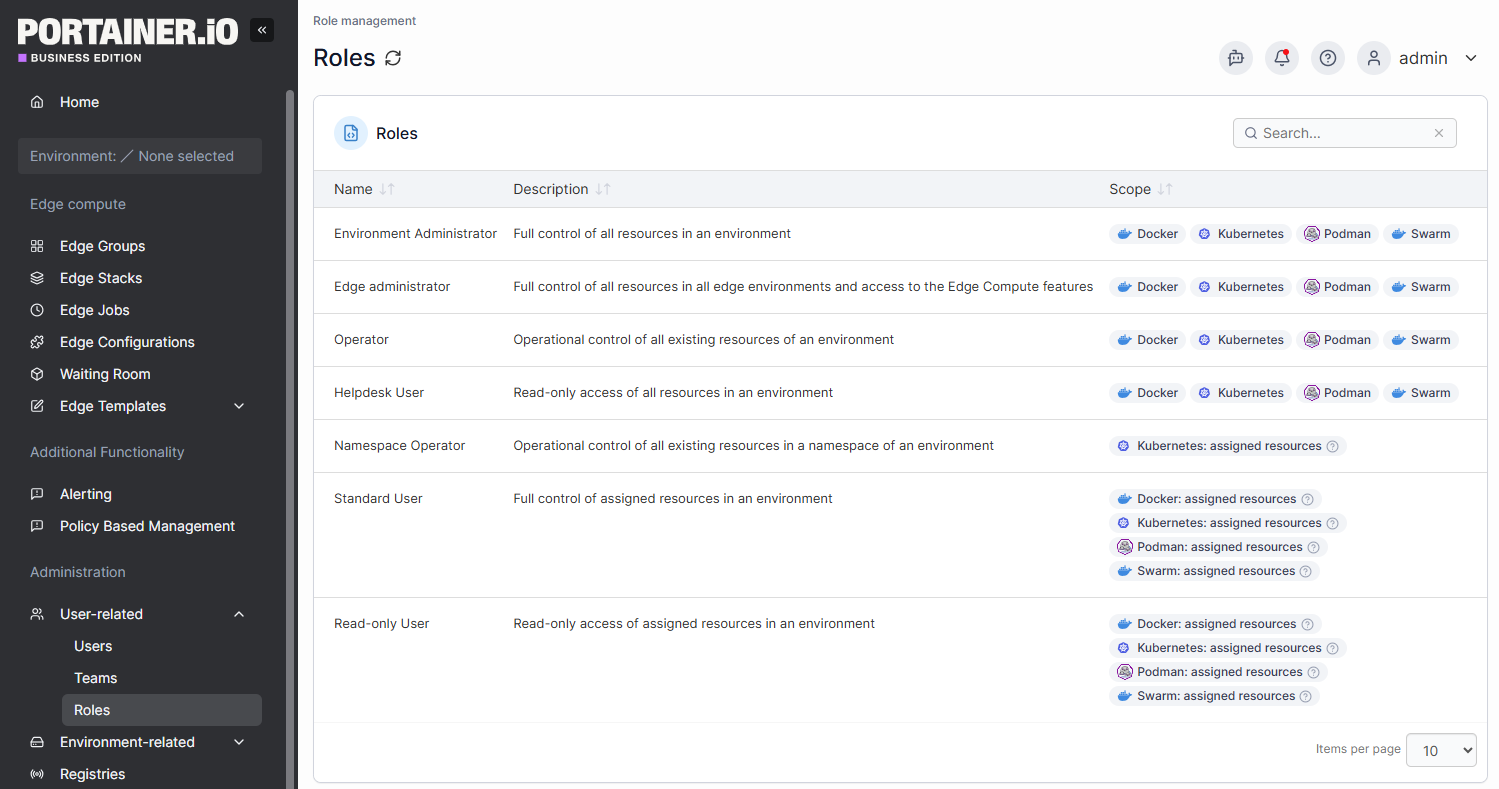
Giving developers cluster-admin privileges creates two problems: accidental production changes and no audit trail when something goes wrong.
RBAC fixes this by scoping permissions to what each person or team actually needs:
- Developers get read access to their own namespace and write access to dev environments
- Platform engineers get write access across namespaces, but cannot modify RBAC policies
- CI service accounts get narrowly scoped permissions to deploy specific workloads
Portainer's RBAC model enforces these access boundaries across Docker, Swarm, and Kubernetes environments from a single interface. So your platform teams do not need to configure permissions separately across clusters.
Maintain a Centralized View Across All Container Environments
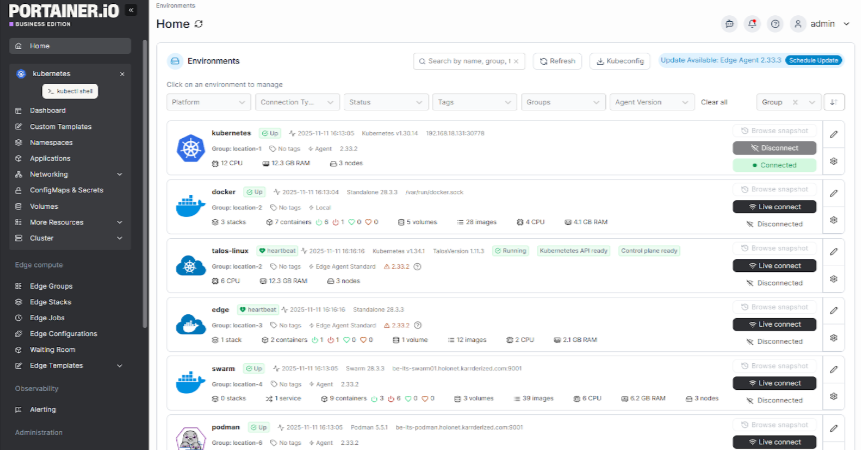
Managing containers across multiple clusters and cloud providers makes it hard to know what is running, where, and in what state
Centralized container management solves this by Portainer’s unified view of all clusters, workloads, and environments through a single interface.
Interestingly, Portainer provides this visibility across Docker Standalone, Docker Swarm, Kubernetes, and edge environments from a single management plane. It allows you to inspect logs, restart containers, manage volumes, and control access without switching tools or writing environment-specific CLI commands.
Contact Portainer’s technical sales team and manage your containerized application across cloud, hybrid, and on-prem environments.
Real-World DevOps Container Use Cases
Here is how real DevOps teams use containers in production and what the results look like.
Legacy VM Workloads Migrated to Containers With 75% RAM Reduction
Ideal for: Infrastructure teams making the business case for containerization to leadership.
Many DevOps teams inherit monolithic VM-based applications carrying years of configuration drift. Migrating to containers replaces bloated VM guests with lean, reproducible images.
One documented Java SOA migration saw RAM consumption drop from 5.5 GB on VMs to 1.25 GB in containers. A reduction of over 75% with CPU utilization following the same pattern.
Read the VM to container migration guide.
Automotive Manufacturer Standardizes Container Deployments Across Engineering Teams
Ideal for: Large engineering organizations with mixed technical depth across teams.
An automotive manufacturing company modernizes its internal systems using containers to standardize application deployment across multiple facilities.
Previously, its environment inconsistencies slowed releases and increased downtime. By containerizing workloads, they created consistent runtime environments across development, testing, and factory-floor systems.
Portainer provided centralized control over distributed container environments, enabling controlled access and simplified workload management across teams.
Further reading: Driving Container Efficiency: Simplifying DevOps in Automotive Manufacturing |
Global Healthtech Platform Cuts Deployment Time From 2 Hours to 5 Minutes
Ideal for: Regulated industries where speed and compliance must coexist.
A surgical intelligence company needed to ship fast while meeting strict healthcare compliance requirements. New developers took six months to reach productivity with Docker and Kubernetes, and each deployment consumed two hours.
After adopting a centralized management layer with self-service access for developers, deployment workflows dropped from two hours to five minutes within the first week. Developer time spent on deployments fell from over an hour per day to under ten minutes.
Further reading: Driving Container Efficiency: Simplifying DevOps in Automotive Manufacturing |
Manage Your Containers More Effectively with Portainer
As your container environments grow, visibility and governance become harder to maintain solely through the CLI.
Portainer gives you centralized control across Docker and Kubernetes environments. You can manage workloads, enforce RBAC, control deployments, and maintain operational oversight without replacing your existing CI/CD or monitoring stack.
Book a demo and see how Portainer helps you operate containers at scale with confidence.