How to secure Portainer Edge with mutual TLS (mTLS)
When deploying Portainer in production to manage remote edge devices, exposing it to the internet often raises security concerns.
Firewall ACLs alone are not sufficient when edge devices use dynamic IP addresses. You cannot reliably restrict access by source IP.
A stronger approach is Mutual TLS (mTLS).
mTLS requires both:
- The server to present a trusted certificate
- The client to present a trusted certificate
Only devices with certificates issued by your trusted Certificate Authority (CA) can connect.
This guide walks through enabling mTLS for Portainer Edge.
For simplicity, Portainer will act as the CA in this example. In production, use your corporate CA.
Step 1: Generate a Root Certificate Authority
SSH into your Portainer server and run:
openssl req -newkey rsa:8192 -nodes -keyout ca.key -x509 -days 365 -out ca.cert -batch
This creates:
ca.keyca.cert

Step 2: Generate the Server Certificate
openssl genrsa -out server.key 4096

openssl req -new -key server.key -out server.csr -batch

openssl x509 -req -days 365 \
-in server.csr \
-CA ca.cert \
-CAkey ca.key \
-CAcreateserial \
-out server.cert \
-extfile <(printf "subjectAltName=DNS:<YOURFQDNHERE>\nextendedKeyUsage=serverAuth")
Replace <YOURFQDNHERE> with the fully qualified domain name of your Portainer server.

Step 3: Generate the Client Certificate
This certificate will be used by Edge Agents.
openssl genrsa -out client.key 4096

openssl req -new -key client.key -out client.csr -batch -subj "/CN=edge-client"

openssl x509 -req -days 365 \
-in client.csr \
-CA ca.cert \
-CAkey ca.key \
-CAcreateserial \
-out client.cert \
-extfile <(printf "extendedKeyUsage=clientAuth")
Copy these files somewhere safe:
ca.certclient.certclient.key
Step 4: Redeploy Portainer with mTLS enabled
You must redeploy Portainer to enable TLS options. You can reuse your existing Portainer database volume.
Example Docker deployment:
docker run --name portainer -d \
-p 8000:8000 \
-p 9443:9443 \
--restart=always \
-v /var/run/docker.sock:/var/run/docker.sock \
-v portainer_data:/data \
-v /root:/certs \
portainer/portainer-ee:latest \
--sslcert /certs/server.cert \
--sslkey /certs/server.key \
--sslcacert /certs/ca.cert
This:
- Enables HTTPS on 9443
- Requires client certificates signed by your CA
Portainer is now protected by mTLS.
Step 6: Deploy Edge Agent with mTLS
On the edge device:
mkdir /certs
Copy into /certs:
ca.certclient.certclient.key
Now deploy:
PORTAINER_EDGE_ID=$(hostname)

docker run -d \
-v /var/run/docker.sock:/var/run/docker.sock \
-v /var/lib/docker/volumes:/var/lib/docker/volumes \
-v /:/host \
-v /certs:/certs \
-v portainer_agent_data:/data \
--restart always \
-e EDGE=1 \
-e EDGE_ID=$PORTAINER_EDGE_ID \
-e EDGE_KEY=<YOUR_EDGE_KEY> \
-e EDGE_INSECURE_POLL=0 \
--name portainer_edge_agent \
portainer/agent:2.14.2 \
--sslcert /certs/client.cert \
--sslkey /certs/client.key \
--sslcacert /certs/ca.cert
Check logs:
docker logs -f portainer_edge_agent
You should see:
- Successful connection
- Placeholder endpoint ID assigned
Step 7: Approve the device
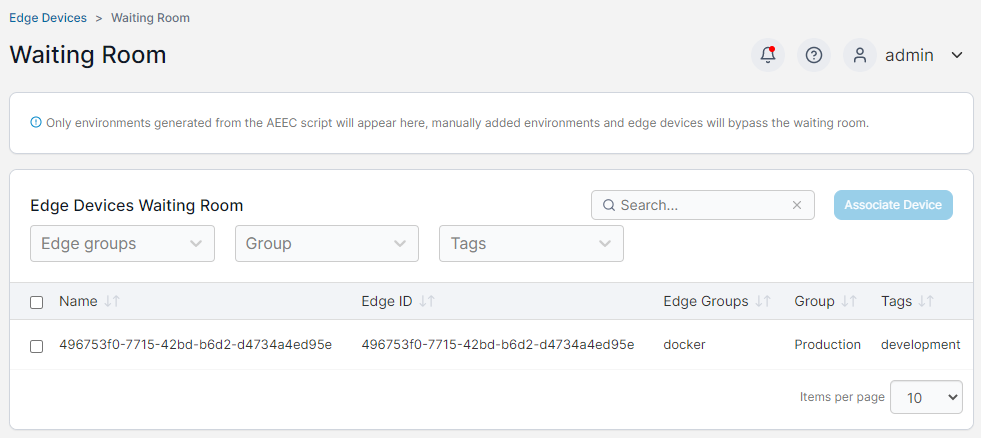
In Portainer go to Waiting Room in the Edge compute menu and associate the device by selecting the check box and selecting Associate Device.
Your Portainer instance is now:
- Internet accessible
- Protected by mTLS
- Accepting connections only from agents presenting valid CA-issued client certificates
All other requests are rejected during TLS negotiation.
Production recommendations
- Use your corporate CA instead of self-signing
- Issue unique client certificates per device
- Use shorter certificate lifetimes with rotation
- Protect private keys carefully
mTLS adds strong cryptographic identity verification to Portainer Edge deployments and is suitable for high-security environments where IP allow-listing is not viable.
Try Portainer with 3 Nodes Free
If you're ready to get started with Portainer Business, 3 nodes free is a great place to begin. If you'd prefer to get in touch with us, we'd love to hear from you!